

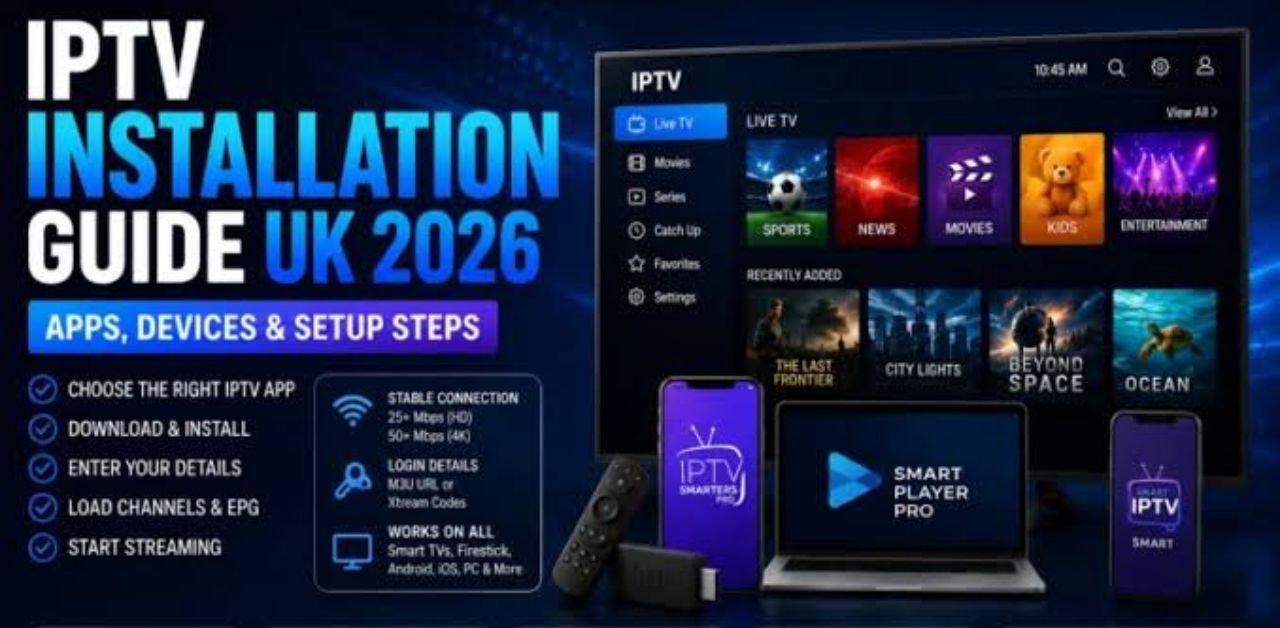




If you’re looking for a complete IPTV UK setup tutorial, you’ve come to the right place. Whether you’re using a Smart TV, Amazon Firestick, Android device, Windows PC, iPhone, or MAG Box, setting up IPTV UK is easier than you might think. Modern IPTV players support simple login methods such as Xtream Codes API or M3U playlists, making installation quick across most devices. In this guide, you’ll learn everything you need to know about installing IPTV, choosing the right player, troubleshooting common issues, and optimizing your streaming experience.
What Is IPTV UK?
IPTV UK stands for Internet Protocol Television, which delivers television content over an internet connection instead of traditional satellite or cable services. With IPTV, users can access live TV channels, movies, TV series, catch-up content, and more using compatible applications and devices. Unlike conventional television, IPTV offers greater flexibility, allowing you to watch content on multiple devices wherever you have a reliable internet connection.
What You Need Before Setting Up IPTV UK
Before beginning your installation, make sure you have:
- A stable internet connection
- IPTV subscription credentials
- Xtream Codes login or M3U Playlist URL
- Compatible IPTV player
- Smart TV, Firestick, Android Box, PC, or mobile device
For smooth streaming, many guides recommend at least 10 Mbps for HD content and 25 Mbps for 4K streaming.
Best IPTV Apps for IPTV UK
Choosing the right IPTV player makes installation much easier.
Popular IPTV players include:
- IPTV Smarters Pro
- TiviMate
- XCIPTV
- GSE Smart IPTV
- VLC Media Player
- OTT Navigator
- Perfect Player
Most IPTV services support either Xtream Codes API or M3U playlists for quick login.
How to Set Up IPTV UK on Smart TV
Smart TVs from Samsung, LG, Sony, and Android TV offer an easy installation process.
Step 1
Open your TV App Store.
Step 2
Download an IPTV player like IPTV Smarters or Smart IPTV.
Step 3
Launch the application.
Step 4
Choose Login with Xtream Codes API.
Step 5
Enter:
- Username
- Password
- Server URL
Step 6
Click Login.
Your channels and Video on Demand library will automatically load.
How to Install IPTV UK on Amazon Firestick
Fire TV Stick remains one of the most popular IPTV streaming devices.
Step 1
Go to:
Settings → My Fire TV
Step 2
Enable installation of apps from unknown sources (or Install Unknown Apps for Downloader on newer Fire OS versions).
Step 3
Install Downloader.
Step 4
Download your preferred IPTV player.
Step 5
Open the application.
Step 6
Enter your IPTV login details.
Step 7
Start streaming.
The entire process usually takes less than five minutes.
How to Set Up IPTV UK on Android Devices
Android phones, tablets, and Android TV Boxes provide one of the easiest IPTV experiences.
Simply:
- Download IPTV Smarters
- Install the app
- Select Xtream Codes Login
- Enter your credentials
- Save
- Enjoy streaming
Android supports nearly every IPTV player available today.
How to Install IPTV UK on iPhone and iPad
Apple users can also enjoy IPTV.
Steps include:
- Download GSE Smart IPTV or Smarters Player
- Open the application
- Select Xtream Codes Login
- Enter subscription details
- Save settings
- Begin watching
Installation is very similar to Android devices.
How to Watch IPTV UK on Windows or Mac
Desktop users have multiple options.
Popular software includes:
- VLC Media Player
- IPTV Smarters
- MyIPTV Player
Simply install the software and enter either:
- Xtream Codes
- M3U Playlist URL
Your content will load within seconds.
Setting Up IPTV UK on MAG Box
MAG Boxes remain popular among IPTV enthusiasts.
Configuration steps:
- Open Settings.
- Select System Settings.
- Open Servers.
- Choose Portals.
- Enter Portal Name.
- Add Portal URL.
- Save.
- Restart the device.
The IPTV portal loads automatically after reboot.
Using Xtream Codes Login
Most IPTV providers now recommend Xtream Codes because it is easier than M3U playlists.
You only need:
- Username
- Password
- Server URL
The application automatically downloads:
- Live TV
- Movies
- TV Shows
- EPG Guide
Using M3U Playlist
Some providers also offer M3U playlists.
Simply:
- Copy the M3U URL
- Paste it into your IPTV player.
- Save
- Refresh
Your channels will appear automatically.
Internet Speed Recommendations
For the best viewing experience:
| SD | 5 Mbps |
| HD | 10 Mbps |
| Full HD | 20 Mbps |
| 4K UHD | 25–50 Mbps |
A wired Ethernet connection is generally more stable than Wi-Fi for IPTV streaming.
Common IPTV UK Problems and Fixes
Buffering
Solutions:
- Restart router
- Use an Ethernet cable.
- Upgrade internet speed
- Close background applications
Channels Not Loading
Try:
- Refresh playlist
- Restart app
- Verify login credentials
- Contact your IPTV provider.
App Crashing
Fixes include:
- Update app
- Clear cache
- Reinstall application
Login Failed
Check:
- Username
- Password
- Server URL
- Internet connection
Tips for Better IPTV Streaming
Improve performance by:
- Using 5GHz Wi-Fi
- Restarting your router regularly
- Keeping apps updated
- Using high-quality IPTV players
- Avoiding overloaded devices
Many user reports also emphasize that stable home networking and updated apps significantly reduce buffering. If buffering continues, restart the router, use an Ethernet connection, close background applications, and check whether the device or network is overloaded.
Why Choose Home IPTV UK?
If you’re searching for a reliable IPTV provider with simple installation, fast activation, and support across multiple devices, visit IPTV UK.
The website offers helpful setup information and services designed to make IPTV installation straightforward.
Frequently Asked Questions (FAQs)
What is IPTV UK?
IPTV UK is a television streaming service that delivers content through an internet connection rather than satellite or cable.
Which devices support IPTV UK?
Smart TVs, Firestick, Android TV, Windows PCs, Macs, iPhones, iPads, MAG Boxes, and more.
Is IPTV difficult to install?
No. Most users can complete installation in less than ten minutes by entering Xtream Codes or an M3U playlist into a compatible player.
Which IPTV player is best?
Popular choices include IPTV Smarters Pro, TiviMate, XCIPTV, and VLC Media Player.
How fast should my internet be?
A minimum of 10 Mbps is recommended for HD, while 25 Mbps or more is preferable for 4K streaming.
Can I use one IPTV subscription on multiple devices?
That depends on your IPTV provider’s subscription policy. Check your provider’s terms for simultaneous connections.
Conclusion
Setting up IPTV in the UK has become much easier thanks to user-friendly IPTV applications and standardized login methods, such as Xtream Codes and M3U playlists. Whether you’re using a Smart TV, Firestick, Android device, iPhone, Windows PC, or MAG Box, the installation process is straightforward with the correct credentials and a stable internet connection.
For a smooth experience, use a trusted IPTV player, maintain a reliable broadband connection, keep your apps updated, and follow your provider’s setup instructions. If you’re looking for additional guidance or IPTV-related services, visit IPTV UK. This guide is designed to help users get started with IPTV technology while following general setup practices supported by common IPTV applications. With the right setup, you can enjoy a simple and reliable IPTV experience.
Leave a Reply