

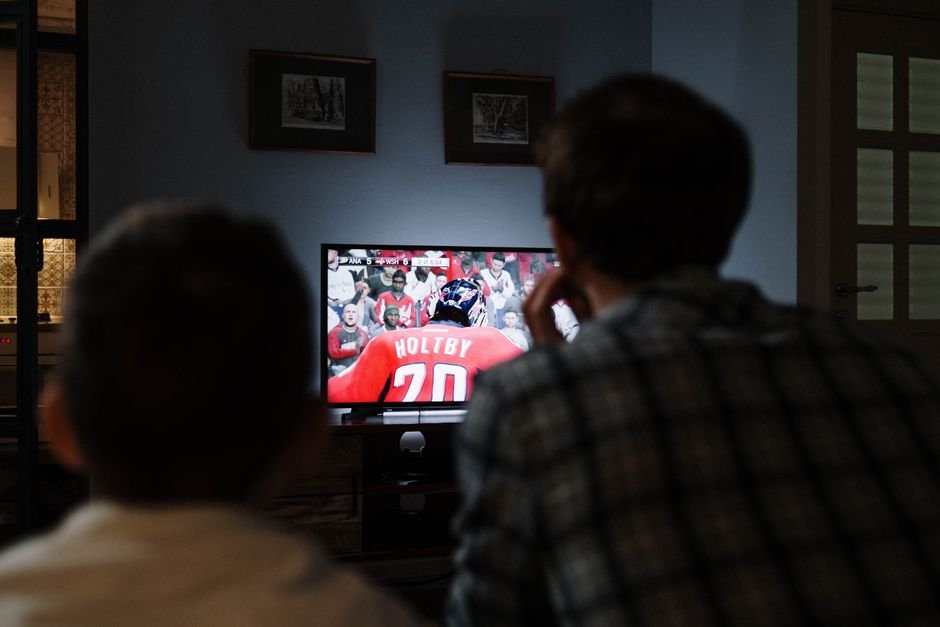




You load up an evening broadcast on your main living room television, but the picture looks soft, washed out, or juddery. Most people blame their broadband provider straight away. Often, the real culprit hides inside your device configuration. Getting your IPTV resolution settings right makes a massive difference to daily viewing.
The Problem With Default IPTV Resolution Settings
Most streaming apps and media boxes rely on automatic detection to pick a video output. This sounds convenient. In practice, auto-detection frequently guesses wrong. Your hardware might force a 4K output onto an older 1080p panel, or scale a standard definition live feed up awkwardly. That mismatch creates unwanted motion blur and compression artifacts.
British television broadcasts generally use specific broadcast standards. Standard definition historically ran at 576i, while modern high definition relies on 1080i or 1080p at fifty frames per second. When your playback app ignores these native broadcast framerates, you get stuttering movement. Cameras panning across a football pitch reveal this flaw instantly.
If your stream struggles during busy sporting fixtures, check your connection load alongside your video output. Heavy bandwidth demands can trigger buffering loops that ruin match night, as detailed in our guide on why your IPTV subscription keeps freezing during live football matches. But resolution mismatches cause visual jitter even when your internet speed tests completely fine.
Myth vs Fact: Higher Resolution Always Means Better Viewing
Many viewers assume forcing maximum 4K output across every channel guarantees a superior picture. That assumption creates more problems than it solves.
Myth: Forcing 2160p output on your streaming box upgrades standard channels to 4K quality automatically.
Fact: Your device simply stretches the original pixel data. Upscaling low-resolution source material introduces digital noise and jagged edges. A native 720p stream looks much cleaner when output at its original resolution rather than forced into an artificial 4K container.
Another common misconception involves frame rates. North American media traditionally runs at sixty hertz. UK and European broadcasting standards use fifty hertz. If your hardware locks your display output to sixty hertz while playing a fifty hertz UK broadcast, every single frame stutters subtly. Your eyes notice this micro-judder immediately during panning shots.
Optimising Your IPTV Resolution Settings for UK Broadcasting
Sorting out your video configuration requires a methodical approach. You need to look past flashy marketing terms on your television box and focus on raw compatibility.
Start by checking your television native panel resolution. Most modern sets sold across the UK are full 1080p or Ultra HD 4K models. Open your streaming device video menu. Instead of leaving the output on auto, manually select the highest native resolution your display actually supports without upscaling.
Next, look for a feature called match frame rate or refresh rate switching. Turning this setting on forces your player to adjust your TV refresh rate dynamically. When you switch from a 50Hz live news broadcast to a 24Hz film stream, your screen matches the source material perfectly. Motion becomes remarkably smooth.
Colour space settings matter too. Most UK consumer televisions handle standard RGB or YCbCr formats well. Setting your colour depth to eight-bit or ten-bit depending on your panel specs prevents colour banding in dark scenes. Avoid forcing HDR mode onto non-HDR channels. That mistake turns bright scenes grey and washed out.
Common Display Mismatches and How to Fix Them
Specific hardware combinations create predictable visual bugs. Recognising these patterns saves hours of frustrating trial and error.
If live feeds appear stretched or cut off at the edges, your overscan settings need attention. Television manufacturers often zoom in slightly by default. Look through your physical TV remote settings menu for a picture size option like ‘Just Scan’, ‘Screen Fit’, or ‘1:1’. Turning off overscan delivers every single pixel cleanly.
Audio delay frequently accompanies video scaling errors. When a streaming box works overtime trying to upscale a heavy video feed, audio packets fall out of sync with the visuals. Dropping your output resolution down one notch often clears up lip-sync drift entirely. Your processor handles the lighter workload without dropping frames.
Take time to test different video decoders within your player application software as well. Hardware decoding offloads processing tasks directly to your streaming stick chip. Software decoding uses system memory instead. Switching between these two modes solves stubborn picture freezing on older Android streaming hardware.
For more information, IPTV UK.
Related reading
- IPTV Multi-Room Setups in the UK: How Home Networks Handle Multiple Screens
- IPTV UK Devices: What Works Best for Your Setup
Explore Our Flexible IPTV Plans and Start Streaming Today
Main events, undercards and title fights streamed in 4K. No pay-per-view charges, no contract, instant activation on any device.
Pingback UK IPTV Setup Mistakes: What Not to Do
Pingback UK IPTV Devices: A Complete Guide for Every Screen
Pingback Organise IPTV Playlist: Clean Up UK Channels Fast