

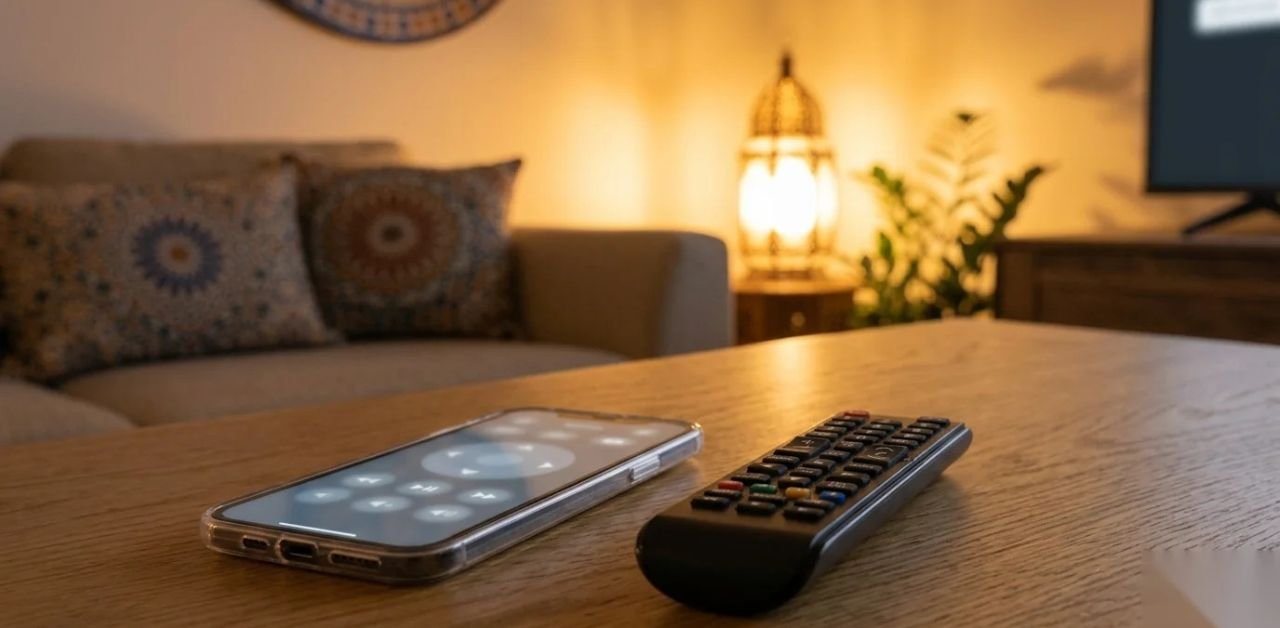




An IPTV remote app turns your phone into a controller for whatever streaming device is plugged into the television, and it solves a problem everyone hits during setup: entering a long server address, a username, and a case-sensitive password using a directional pad and an on-screen keyboard. It is slow, error-prone, and completely unnecessary. This guide covers which remote apps work with which devices, how to set one up, why the keyboard alone justifies it, and where a phone genuinely beats a physical remote for everyday use.
Why an IPTV Remote App Is Worth Setting Up
The keyboard is the headline reason. On a television, using arrow keys takes several minutes and produces at least one typo, which then presents as a login failure with no indication of which character is wrong. With a phone acting as the remote, you type on a phone keyboard — or paste from a message where your provider sent the details, which eliminates typing errors. Setup drops from ten frustrating minutes to about thirty seconds. Beyond setup, the practical wins accumulate. Searching for a channel by name rather than scrolling. Not hunting for a remote that has migrated under a cushion. A trackpad-style control that is faster than pressing an arrow eleven times.
Which IPTV Remote App Works With Which Device
Almost every streaming platform has an official remote app, and the official one is nearly always better than third-party alternatives.
| Fire TV Stick | Official Fire TV app | Yes, full keyboard |
| Android TV / boxes | Google TV app | Yes, plus voice |
| Samsung Smart TV | SmartThings | Yes |
| LG Smart TV | LG ThinQ | Yes |
| Apple TV | Built into iOS Control Centre | Yes, no app needed |
| Generic Android box | Varies — third-party apps | Usually |
Apple’s implementation is the neatest, since it requires no separate download at all — the remote is already in Control Centre on any iPhone.
Setting Up an IPTV Remote App
The process is nearly identical across platforms and takes about two minutes. Install the appropriate app on your phone. Make sure the phone and the streaming device are on the same Wi-Fi network — this is the step people miss, and nothing will connect without it. Open the app, and it should discover the device automatically. Confirm the pairing, usually by entering a code shown on the television. Once paired, the app remembers the device. Opening it later reconnects without repeating any of this.
Using an IPTV Remote App for Setup
This is where an IPTV UK remote app pays for itself immediately. Open your player app on the television as normal, and navigate to the login screen movies. When a text field is selected, the remote app on your phone should offer a keyboard — on Fire TV it appears automatically, on others there is a keyboard icon to tap. Now type or paste your server address, username, and password directly from the phone. If your provider sent the details by message or email, copy and paste them rather than typing, which removes the possibility of a typo entirely. Our Firestick guide covers the rest of the app setup once the credentials are in.
Everyday IPTV Remote App Uses
Most people install a remote app for setup and then keep using it, for reasons that only become obvious afterwards.
Searching is the big one. Typing a channel or film name takes seconds on a phone and forever on a directional pad.
The trackpad on most remote apps is faster than directional buttons for moving through a long channel list.
Never losing it matters more than it sounds. The phone is always to hand; the physical remote is not.
A second controller means two people can control the television without passing anything back and forth.
When a Physical Remote Beats an IPTV Remote App
An honest note, because a phone does not win at everything. Physical buttons are better for quick channel flipping without looking, since muscle memory works on a remote and does not work on a flat screen. The phone battery is a genuine consideration during a long evening. And a remote app depends on the Wi-Fi connection holding — if the network drops, so does your control. Most households end up using both: the phone for typing, searching, and setup, and the physical remote for volume and channel changes. Our devices guide covers what each platform supports.
Common IPTV Remote App Problems
The issue list is short. The app cannot find the device means they are on different networks — check that the phone is not on mobile data or a guest Wi-Fi network. Pairing fails repeatedly usually resolves after restarting both the app and the streaming device. The keyboard does not appear normally means no text field is selected on the television; select the field first, then check the phone. If the remote works but your player still rejects the login, the problem is the credentials rather than the remote — and our iPhone setup guide covers entering them correctly on mobile.
Frequently Asked Questions
Do I need a specific IPTV remote app?
No. Use the official remote app for your streaming device — it controls whatever player you have installed, including IPTV apps.
Does an IPTV remote app work over mobile data?
No. The phone and the streaming device must be on the same Wi-Fi network.
Can I paste my login details?
Yes, and it is the main reason to use one. Pasting eliminates typos in case-sensitive credentials.
Does an IPTV remote app drain the phone battery?
Modestly. It is fine for setup and searching, less ideal as a permanent replacement across a long evening.
Can two phones control one device?
Usually yes. Most remote apps allow several paired phones.
Is it more secure than a physical remote?
It is comparable. Both operate on your local network; neither exposes anything externally.
Conclusion
An IPTV remote app can make the overall streaming experience more convenient, organized, and user-friendly. Instead of relying entirely on a traditional remote control, users can use their smartphone or tablet to navigate menus, switch between channels, adjust playback, search for content, and manage compatible IPTV devices. This can be particularly useful when the physical remote is misplaced, difficult to use, or lacks convenient features. A good IPTV remote app should offer a simple interface, responsive controls, reliable connectivity, and compatibility with the IPTV player or device being used. Features such as channel navigation, volume control, playback controls, keyboard input, favorites, and quick access to frequently used content can make everyday viewing much easier. Some apps may also provide additional customization options that allow users to personalize their viewing experience.
However, compatibility and security are important factors to consider before installing an IPTV remote app. Users should choose applications from trustworthy sources, review the permissions requested by the app, and make sure the software is compatible with their device and IPTV setup. It is also important to use IPTV services that have the appropriate rights and licenses for the content they provide. Overall, an IPTV remote app can be a practical addition to a modern home entertainment setup. By combining convenient smartphone controls with a compatible IPTV device or player, it can make browsing and managing television content more comfortable. Choosing a secure, reliable, and well-supported app can help users enjoy a smoother and more convenient IPTV experience.
Leave a Reply