

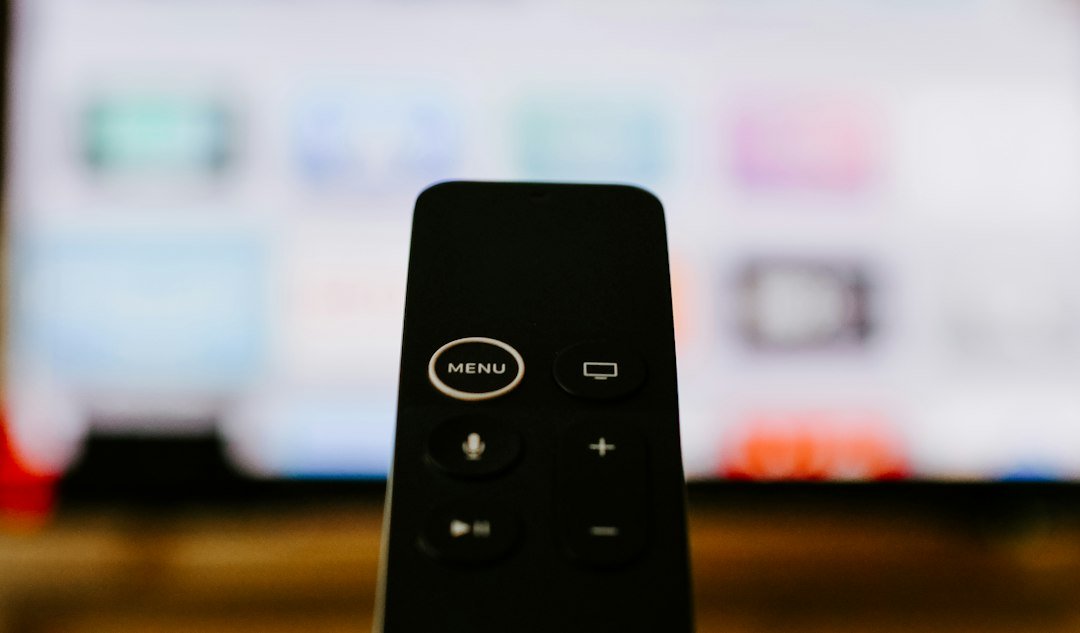




You plug a shiny new streaming stick into your living room television, load your preferred app, and watch the live feed stutter immediately. Frustration kicks in right away. Many British households face this exact hardware roadblock because they assume every screen handles streaming software the exact same way. Good IPTV device compatibility requires understanding what your specific hardware can actually handle.
Myth One: Any Smart TV Runs Every App Smoothly
Walk into a high street electronics shop in London or Manchester. You see rows of glossy television sets boasting high resolutions and smart features. Sales tags mention internet connectivity and app stores. Buyers often assume built-in operating systems will effortlessly run any modern media player.
That assumption causes constant headaches.
Many popular television operating systems use lightweight processors and limited storage. Manufacturers often prioritize sleek interfaces over raw processing grunt. When you load a complex streaming app onto an older or budget-friendly smart TV, the hardware struggles. The processor throttles. RAM fills up quickly. Menus lag, and live video streams drop frames.
The solution is straightforward. Stop relying solely on the built-in TV software for heavy lifting. External streaming hardware usually solves performance bottlenecks. Dedicated media players feature stronger processors designed specifically for continuous video decoding. Your television simply acts as a display while the external box does the heavy work.
The Reality of Android TV and Fire TV Ecosystems
Google TV and Amazon Fire OS power millions of living room setups across the UK. People treat them as interchangeable platforms. They are not.
Android TV devices often offer broader codec support and generous USB port options. You can side-load applications easily or connect extra storage. Amazon Fire devices focus heavily on walled gardens and proprietary interfaces. They work brilliantly for basic streaming apps, but low-end Fire sticks sometimes lack the memory needed for intensive media libraries containing thousands of channels.
You must check the RAM specifications before buying. Never buy a streaming stick with less than two gigabytes of memory if you want smooth channel guides. Cheap hardware ruins the viewing experience through constant crashes and slow channel switching.
Myth Two: Mobile Devices and Computers Don’t Need Setup Care
Watching live television on a smartphone or a laptop feels simple. You open a browser or install a mobile app, and the stream starts playing. Because these gadgets have powerful modern processors, users rarely think about configuration details.
Battery saver modes ruin mobile streaming. Operating systems on iPhones and Android phones aggressively close background processes to save power. When your phone throttles background internet activity, your live feed freezes.
Laptops present a different set of challenges. Browser memory leaks cause streams to bog down after an hour of continuous playback. Hardware acceleration settings inside web browsers often remain disabled by default. Turning those settings on shifts the decoding workload from the main processor to your graphics chip. That simple adjustment prevents your laptop fan from spinning wildly during an evening football match.
Hardware Choices Matter: IPTV Device Compatibility in Practice
Choosing the right hardware shapes your entire home entertainment routine. A bedroom tablet needs different considerations than a main living room projector. Evaluating hardware comparisons like MAG boxes versus Fire TV sticks helps clarify what fits your specific household habits.
Some users prefer dedicated set-top boxes because they offer wired Ethernet ports directly. Wi-Fi works well for casual browsing, but solid copper connections eliminate local interference in busy urban apartments where wireless channels overlap.
Check your router proximity too. A powerful streaming box sitting behind a thick brick wall will still suffer from packet loss. Move the device into direct line of sight whenever possible.
Solving Resolution Mismatches and Audio Delays
Have you ever watched a broadcast where the audio and mouths completely drift out of sync? That problem usually stems from automatic upscaling settings on your display device.
Smart displays try to force every incoming signal into native 4K resolution at sixty frames per second. If your source feed broadcasts at a standard frame rate, the television processor stumbles while converting the picture. Audio tracks get delayed while the video catches up.
Fix this by locking your streaming device output to match the source content natively. Set your box to output fifty hertz if you watch UK broadcasts primarily. Match the frame rate inside your media player settings. That removes the processing burden from your television and keeps lip-sync issues away.
Clear out cached data every few weeks. Streaming apps accumulate gigabytes of temporary poster art and stream logs. When storage drives get full, operating systems choke. A clean cache restores lost speed instantly.
Assess your hardware honestly. If your setup struggles with basic menu navigation, replacing the older streaming stick with a modern, capable device transforms your daily viewing routine without touching your broadband package.
For more information, IPTV UK.
Related reading
- 5 Common Mistakes to Avoid When Setting Up Your IPTV Subscription in Living Rooms Across the UK
- Ethernet vs Powerline: Which Network Link Suits UK IPTV Streaming Best?
Pingback Ethernet vs Powerline: Best UK IPTV Network Setup
Pingback IPTV UK Devices: Choosing the Right Hardware for Streaming
Pingback UK IPTV Parental Controls: How to Lock Channels & Apps
Pingback IPTV UK Devices: Complete Setup Guide for Your Home