

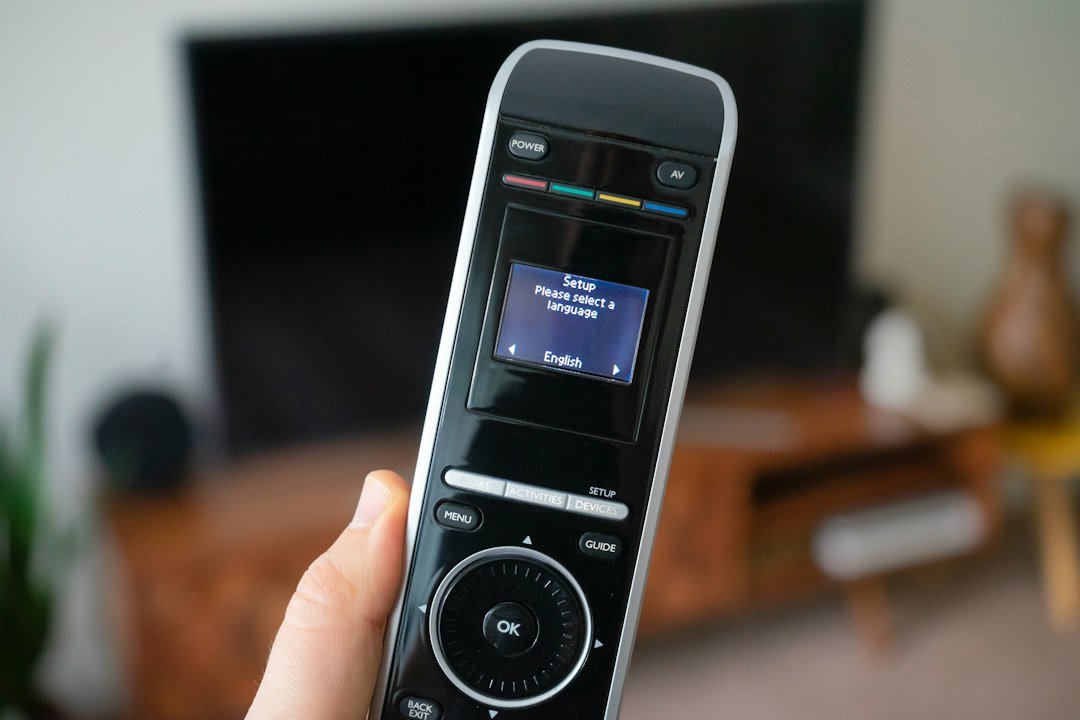




Stuttering playback and sluggish menu navigation often come down to one hidden culprit: temporary files clogging up your system. If your device feels heavier than it did last month, you probably need to clean IPTV cache to restore normal performance. Streaming apps constantly download small chunks of data to keep video flowing smoothly, but these files pile up over weeks and months until your hardware runs out of breathing room.

Why Temporary Files Slow Down Your UK Setup
Every time you open an electronic programme guide or load a live channel, your media player stores small fragments of information locally. This process speeds up loading times initially. Eventually, though, corrupted packets or massive data bloat cause your application to crash or freeze mid-stream. Clearing out these unwanted bits gives your media player a fresh slate.
It also helps when dealing with stubborn connection errors. If your software refuses to load updated channel lists, old cached data is usually the reason. Deleting these temporary records forces your application to fetch fresh data straight from your provider.
Step-by-Step Guide to Clear Cache on Android TV and Fire Devices
Most popular streaming hardware running Android or Fire OS handles application storage in a similar way. You don’t need any technical expertise or third-party software to handle this maintenance task.
- Grab your remote and navigate to your main device Settings menu from the home screen.
- Scroll down until you spot the Applications or Apps option and click it.
- Select ‘Manage Installed Applications’ or ‘See all apps’ to view everything currently installed on your hardware.
- Find your preferred media player in the list and click its name.
- Choose the option to clean IPTV cache from the menu. Avoid clicking clear data unless you want to wipe your login credentials and playlist links completely.
- Restart your hardware completely by unplugging it for ten seconds before plugging it back in.
Managing Storage on Apple TV and Smart Displays
Apple TV handles app storage differently than Android competitors. You won’t find a simple button to clear temporary files on tvOS. Instead, the operating system manages storage automatically in the background. If a media player starts lagging on an Apple device, you typically need to offload or completely reinstall the application to clear out stubborn junk files.
Samsung and LG smart screens running Tizen or webOS face similar limitations. If your built-in television apps slow down dramatically, check the device storage settings in the main system menu. You can often find a memory booster tool that closes background tasks and clears temporary memory in one go.
Preventing Future Bloat and Freezes
You can stop temporary files from taking over your system by building a simple monthly maintenance habit. Make it routine to clear out app memory every few weeks, especially if you watch a lot of live events. Keeping your hardware updated to the latest firmware version also prevents memory leaks that cause apps to hoard storage space unnecessarily.
If your streams still stutter after wiping temporary files, take a look at our guide on why IPTV keeps buffering in the UK to troubleshoot broader network and speed bottlenecks affecting your home broadband connection.
For more information, IPTV UK.
Pingback IPTV UK Subscription Setup: Myths vs Realities