





- What Makes an IPTV Electronic Programme Guide Work
- The XMLTV and M3U Link Anatomy
- Regional UK Variations on Your IPTV Guide
- Handling Time Zones and GMT/BST Shifts
- Customising Your IPTV Electronic Programme Guide Layout
- Fixing Missing Grids and Outdated Data
- Third-Party Guide Providers Versus Built-in Feeds
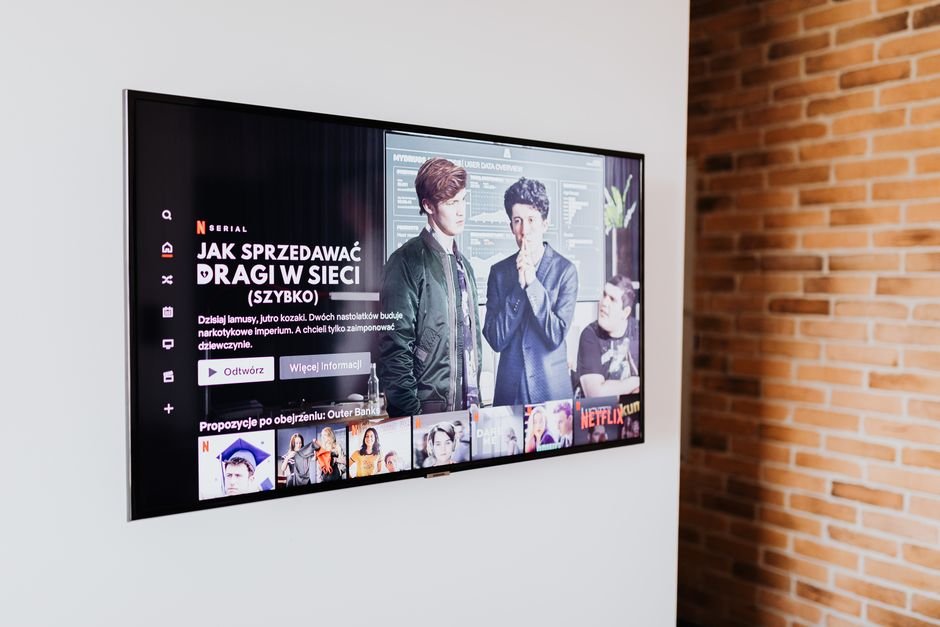
Switching on your television used to mean grabbing a heavy paper magazine or pressing a single button on a remote for Ceefax. Modern streaming changes that completely. When you load up a modern service, an IPTV electronic programme guide pops onto the screen in milliseconds. It organizes thousands of global feeds into neat rows. You see what is playing right now. You check what starts later tonight. But how does that data actually reach your living room? It doesn’t happen by magic. Behind every schedule grid lies a complex web of data feeds, server scripts, and file formats.
What Makes an IPTV Electronic Programme Guide Work
Traditional aerial broadcasts send data alongside the video signal. Digital streaming operates differently. Your media player needs two distinct links to display a working channel lineup. One link delivers the video stream. The second link feeds the text and timing data. This second link usually points to an XML file. Developers call this XMLTV. Every few hours, backend servers scrape schedules from official broadcaster listings. They compile those schedules into a massive, structured text file. Your player downloads this file in the background. It matches the programme titles with the correct channel IDs. Then it paints a grid across your display. If either link breaks, your schedule turns blank. You see empty boxes instead of show titles. Understanding this split helps you diagnose playback headaches quickly.
The XMLTV and M3U Link Anatomy
Your playlist file contains the streaming addresses. Your guide file contains the timetable. They must speak the same language. Each channel in your video list holds a unique identifier. The XML file uses matching IDs to link the correct show name to the correct stream. If the provider changes a channel ID on their backend, the link breaks. Your screen displays ‘No Information Available’. Fixing this requires updating your source URLs. Many apps let you paste both links into separate settings fields. Some advanced apps refresh these files automatically every time you launch the software. You should check these settings if your schedule starts lagging behind real-time broadcasts.
Regional UK Variations on Your IPTV Guide
Broadcasting in the United Kingdom involves a lot of regional splits. BBC One looks entirely different in London compared to Manchester or Glasgow. Local news segments break away from the main network feed. A standard schedule file must account for these differences. Good providers split their channel lists by region. You might select a specific regional feed to catch local updates. If your guide shows London news while you live in Yorkshire, your source link points to the wrong regional ID. You need to swap your playlist URL for one tailored to your exact postcode area. This ensures your local weather and news programmes match your actual location.
Handling Time Zones and GMT/BST Shifts
Clocks change twice a year in the UK. This creates endless scheduling chaos for digital media systems. Servers often run on Coordinated Universal Time. If your app fails to adjust for British Summer Time, your schedule appears an hour off. Shows appear to start before they actually air. Most quality players include a manual time offset setting. You can adjust this by plus or one hour depending on the season. Always check your device system time first. If your streaming box clock drifts, your downloaded programme schedule will drift right along with it.
Customising Your IPTV Electronic Programme Guide Layout
Nobody wants to scroll through twenty thousand channels to find BBC One. A cluttered interface ruins the viewing experience. Most modern media players let you hide unwanted categories. You can build custom groups for sports, news, and entertainment. Some apps support custom channel numbering. You can map your favorite channels to traditional remote buttons. This makes navigation feel familiar. It mimics standard cable boxes. Spend ten minutes organizing your layout. Your daily viewing routine becomes much smoother. You skip the endless scrolling entirely.
Fixing Missing Grids and Outdated Data
Grids break sometimes. It happens to everyone. A source server goes offline. A script fails to update. When your schedule vanishes, don’t panic. First, force a manual refresh inside your app settings. Clear your local cache if the refresh fails. Old data files often get corrupted on small storage drives. Clearing cache forces the app to pull a fresh copy from the web server. If the guide remains empty after a cache clear, your provider likely has a broken backend link. You will need to wait for them to fix their XML file. You can read more about organising large channel lineups in our guide on choosing the right service provider for your needs.
Third-Party Guide Providers Versus Built-in Feeds
Some people rely entirely on the guide provided by their subscription source. Others prefer independent XML providers. Independent providers often offer cleaner descriptions and better artwork. They pull high-resolution poster images for movies and TV shows. Setting up an independent guide requires an extra URL configuration step. You paste a third-party XML link into your app. Then you manually map each channel ID. It takes patience. The payoff is a richer, faster, and more reliable schedule interface. If your provider’s built-in schedule constantly drops data, switching to an independent provider solves the problem permanently.
Managing your television schedule takes a little technical effort. Once you understand how these data feeds interact with your player, everything clicks into place. Keep your URLs updated. Adjust your time offsets correctly. Organize your favorite channels. You get a clean, reliable television guide that works every time you sit down on the sofa.
For more information, IPTV UK.
Related reading
Update: IPTV Quality Myths: What UK Viewers Actually Need for HD and 4K Streaming
Update: IPTV Bandwidth Requirements UK: How Much Speed You Actually Need
Explore Our Flexible IPTV Plans and Start Streaming Today
Main events, undercards and title fights streamed in 4K. No pay-per-view charges, no contract, instant activation on any device.
Pingback IPTV Audio Sync UK: Fix Sound Delay on Channels