

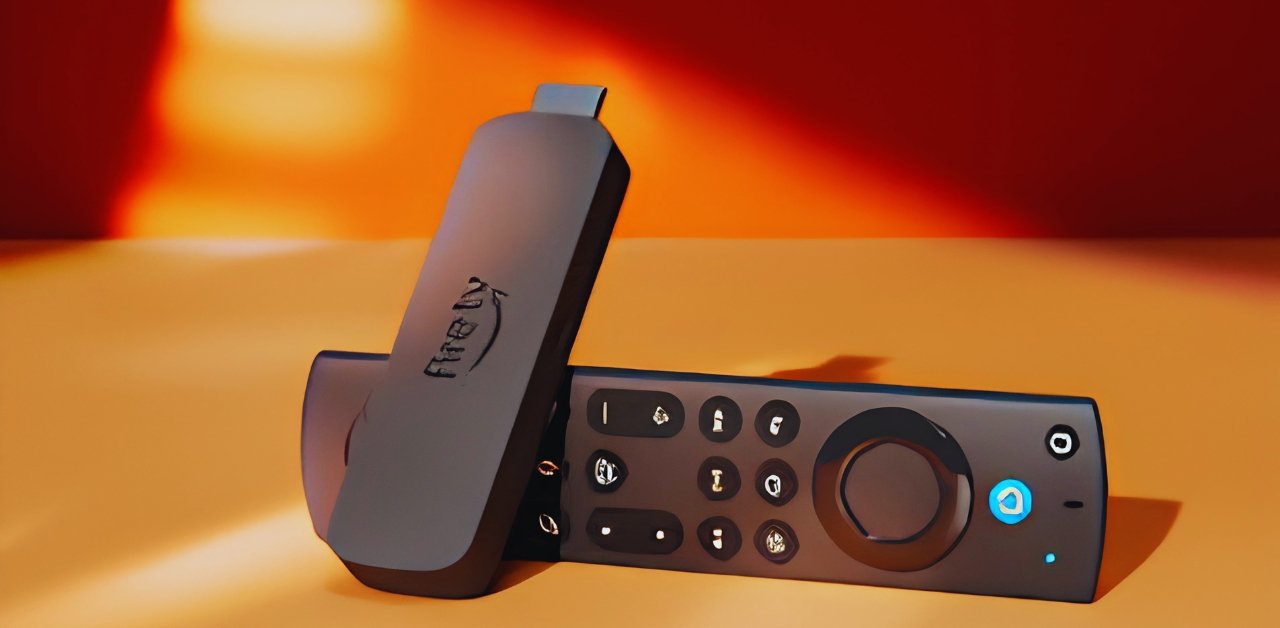




Setting up IPTV on Fire TV Stick is quick and beginner-friendly. Amazon Fire Stick is one of the best streaming devices because it supports IPTV apps, 4K streaming, and smooth playback.
With the right IPTV subscription, you can watch live TV, movies, sports, and international channels directly on your television.
Step 1: Prepare Your Fire Stick
Before installing IPTV apps:
- Turn on your Fire TV Stick
- Open Settings
- Go to My Fire TV
- Select Developer Options
- Enable Apps from Unknown Sources
This allows third-party IPTV UK apps to be installed.
Step 2: Install the Downloader App
The Downloader app helps install IPTV applications.
How to Install Downloader
- Open the Amazon App Store
- Search for Downloader
- Download and install the app
Step 3: Download the IPTV App
Open Downloader and enter the IPTV app download URL provided by your IPTV service.
Popular IPTV apps include:
- IPTV Smarters Pro
- TiviMate
- XCIPTV
Click Download and install the application.
Step 4: Enter IPTV Subscription Details
After installation:
- Open the IPTV app
- Add your IPTV login details
- Enter:
- M3U Playlist URL
- Username
- Password
- Xtream Codes API
Your IPTV provider will provide these details.
Step 5: Start Streaming
Once channels load, you can enjoy:
- Live TV
- Sports channels
- Movies and series
- 4K entertainment
Tips for Better IPTV Streaming on Fire TV Stick
TipBenefit
Use fast internet to reduce buffering
Restart FireStick weekly improves performance
Keep apps updated for better stability
Use an Ethernet adapter for a stronger connection
Conclusion
Installing IPTV on Fire Stick is simple and only takes a few minutes. With a good IPTV app and a stable internet connection, you can stream thousands of live channels and on-demand content directly on your TV.
Leave a Reply