





- Myth One: All IPTV UK Devices Handle 4K Streams Equally
- Problem: Constant Buffering on Wi-Fi Networks
- The Fix: Move to Wired Connections or Optimize Wireless Bands
- Myth Two: Smart TVs Always Beat External Hardware
- Problem: App Crashes and Software Incompatibility
- The Fix: Clean Cache and Update Firmware
- Myth Three: Setup Requires Advanced Technical Skills
- Problem: Remote Control Clutter
- The Fix: Use HDMI-CEC and Universal Controllers
- Making the Right Choice for Your Home
You bought a shiny new box for your living room. You expected instant crystal-clear television. Instead, your screen freezes every ten minutes. People rush online to blame their broadband provider. Sometimes the issue is your internet speed. Often, the real culprit is how your chosen hardware handles the data stream.
Let us look at the reality behind popular IPTV UK devices. We will clear up common misconceptions. More importantly, we will fix the actual problems ruining your evening viewing session.
Myth One: All IPTV UK Devices Handle 4K Streams Equally
Many buyers assume any modern gadget plays ultra-high-definition video without breaking a sweat. Marketing departments love this myth. They plaster 4K badges across every budget box on the market. The truth is quite different. Processor power dictates everything.
A cheap generic streaming stick might download packets fast enough. Its tiny processor simply chokes when decoding heavy video codecs. Frames drop. Audio falls out of sync. You stare at a spinning loading wheel.
High-end hardware changes the game entirely. Devices with dedicated decoding chips process heavy data feeds effortlessly. If you want pristine picture quality, check your hardware specs before buying. Don’t trust the box art. Look for modern processors and adequate RAM. For a deeper dive into hardware comparisons, check out our guide on Fire TV Stick vs Android TV Boxes for UK IPTV Streaming to see which unit fits your setup.
Problem: Constant Buffering on Wi-Fi Networks
Buffering ruins a good broadcast faster than anything else. You sit down to watch a Premier League match. The screen blacks out right before a penalty kick. Rage follows.
Most users blame their internet package. They call their provider and demand a faster speed. They pay extra money every month. Nothing changes. Why? Because Wi-Fi interference wrecks wireless signals in British homes.
Brick walls block radio waves. Microwave ovens disrupt the 2.4GHz frequency. Your neighbour’s router fights on the exact same wireless channel. Your TV box suffers.
The Fix: Move to Wired Connections or Optimize Wireless Bands
Ethernet cables solve most streaming hiccups instantly. Plug a physical cable straight from your router into your streaming box. Data flows without obstacles. Interference disappears.
Running a cable across your living room floor causes domestic disputes. We get it. If you must use Wi-Fi, switch to the 5GHz band. Move your router closer to the television. Disconnect old phones and tablets hogging bandwidth in the background.
Myth Two: Smart TVs Always Beat External Hardware
Built-in apps look tidy. You turn on your television. You launch the app. You start watching. No extra wires clutter your cabinet. One remote controls the whole experience.
Manufacturers install weak processors inside most standard flat-screen televisions to keep costs low. These internal chips struggle to run modern streaming applications smoothly. Menus lag. Apps crash without warning.
External hardware outperforms built-in TV software nine times out of ten. Dedicated media players receive regular firmware updates. They pack stronger Wi-Fi chips. They handle complex playlist formats without breaking a sweat.
Problem: App Crashes and Software Incompatibility
You install a new media player application. It opens for two seconds. Then it shuts down. You try again. Same result. Frustration builds.
Software conflicts happen all the time. Operating systems change. App developers update their code. Older boxes get left behind. If your device runs an outdated software version, modern apps refuse to cooperate.
The Fix: Clean Cache and Update Firmware
Start with a simple reboot. Unplug your streaming box from the wall socket. Wait thirty seconds. Plug it back in. This clears temporary memory corruption.
Next, check for system updates. Manufacturers patch bugs regularly. Navigate to your device settings menu. Find the software update tab. Install any waiting patches.
Clear your app cache if crashes persist. Accumulated junk data slows applications down. Fresh cache space lets software run smoothly again.
Myth Three: Setup Requires Advanced Technical Skills
Some people avoid streaming hardware because they fear complex installation steps. They think they need an IT degree to connect a media player to their television.
Modern IPTV UK devices are plug-and-play. You connect an HDMI cable from the box to your television. You plug the power adapter into the wall socket. You connect to your home Wi-Fi network.
The hardest part involves entering your playlist details or activation codes. Most apps provide clear on-screen instructions. Some even let you pair your device using a mobile phone browser. You scan a QR code. You type your credentials on your phone screen. The TV box links instantly.
Problem: Remote Control Clutter
You need three different remotes to watch television. One turns on the TV. Another controls your soundbar. A third operates your streaming box. Coffee tables become messy battlegrounds.
The Fix: Use HDMI-CEC and Universal Controllers
HDMI-CEC links your devices together through your HDMI cables. Turn on your streaming box. Your television wakes up automatically. Your soundbar turns on too.
Check your television settings menu. Enable CEC functionality. Different brands use confusing names for this feature. Samsung calls it Anynet+. Sony calls it Bravia Sync. LG calls it SimpLink. They all do the exact same job.
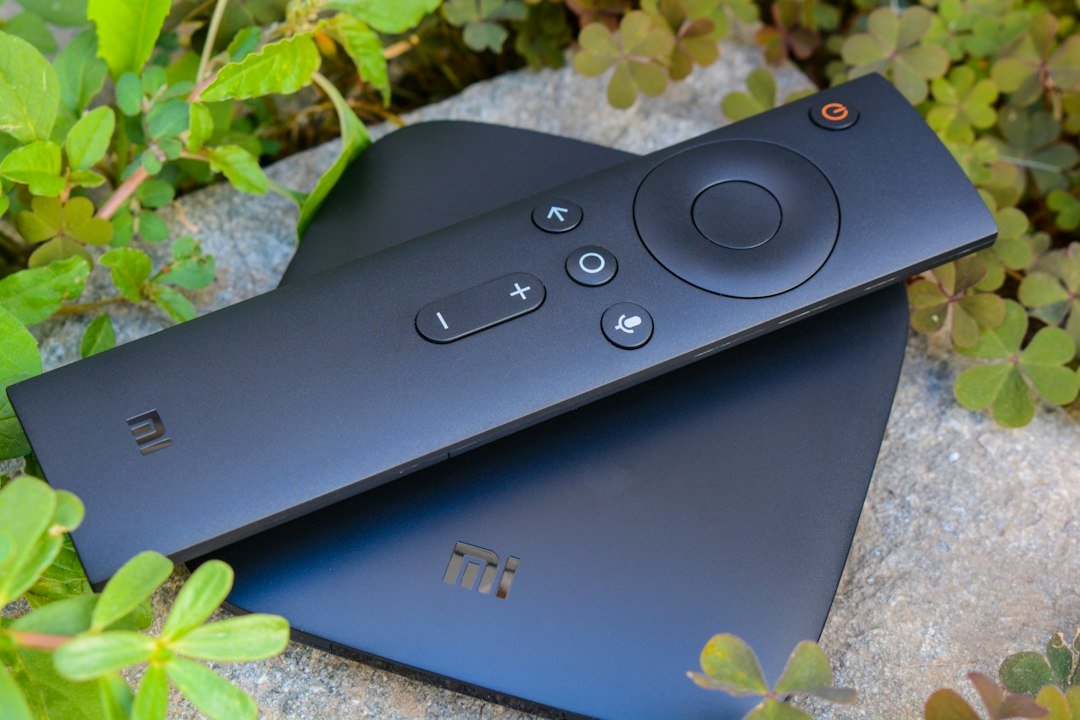
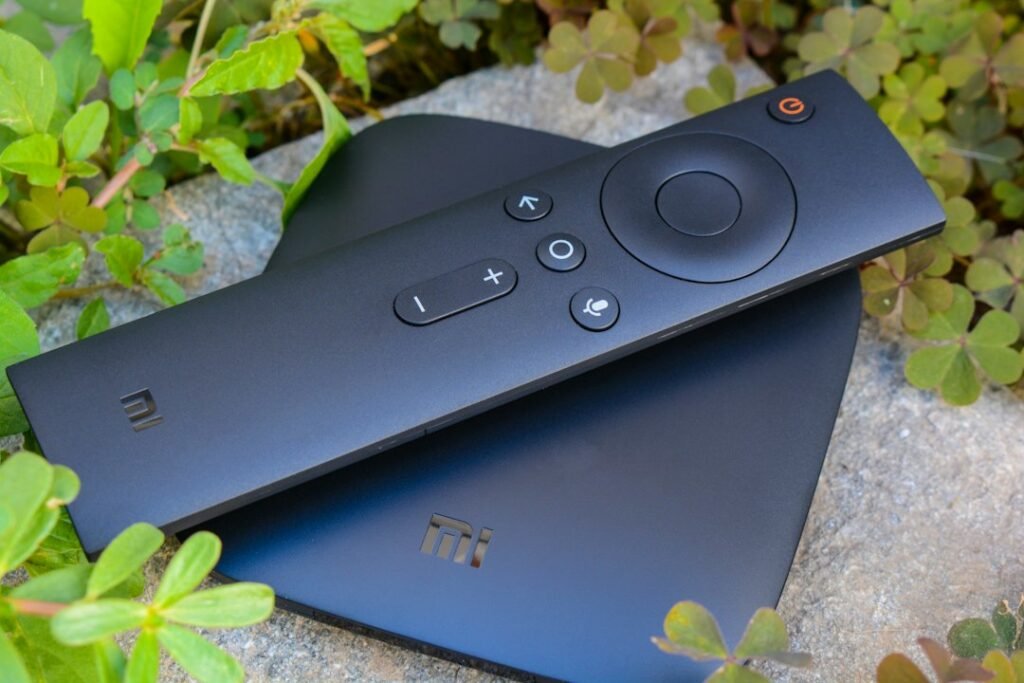
Modern streaming remotes also feature programmable infrared buttons. They learn your television’s power and volume commands. You can toss your old plastic remotes into a drawer and forget them.
Making the Right Choice for Your Home
Selecting the right hardware depends on your specific household needs. A casual viewer watching the news every evening needs basic equipment. A hardcore sports fan demands top-tier processors and wired networking.
Ignore flashy marketing claims. Focus on processor speed, RAM, and reliable connectivity. Solve your Wi-Fi bottlenecks before blaming your streaming provider. Keep your software updated. Your television setup will reward you with uninterrupted entertainment every single night.
For more information, IPTV UK.
Related reading
- Choosing the Right Hardware: A Direct Comparison of IPTV UK Devices
- A Beginner’s Guide to Understanding IPTV Technology in the UK
Update: Understanding IPTV UK Subscription Activation
Update: How to Test Your Internet Speed for IPTV UK Streaming
Pingback Best IPTV UK Devices: Choosing Your Screen