





- Getting to Grips with Your IPTV EPG UK Setup
- How Schedule Data Flows Into Your App
- Sourcing and Linking Your XMLTV Data
- Fixing GMT and BST Timezone Mismatches
- Resolving Missing Channel Logos and Picons
- Automating Background Updates for Fresh Schedules
- Frequently Asked Questions
- Why does my guide show "No Information" for most UK channels?
- How often should my schedule refresh?
- Can I add custom channel names to my guide?
Getting to Grips with Your IPTV EPG UK Setup
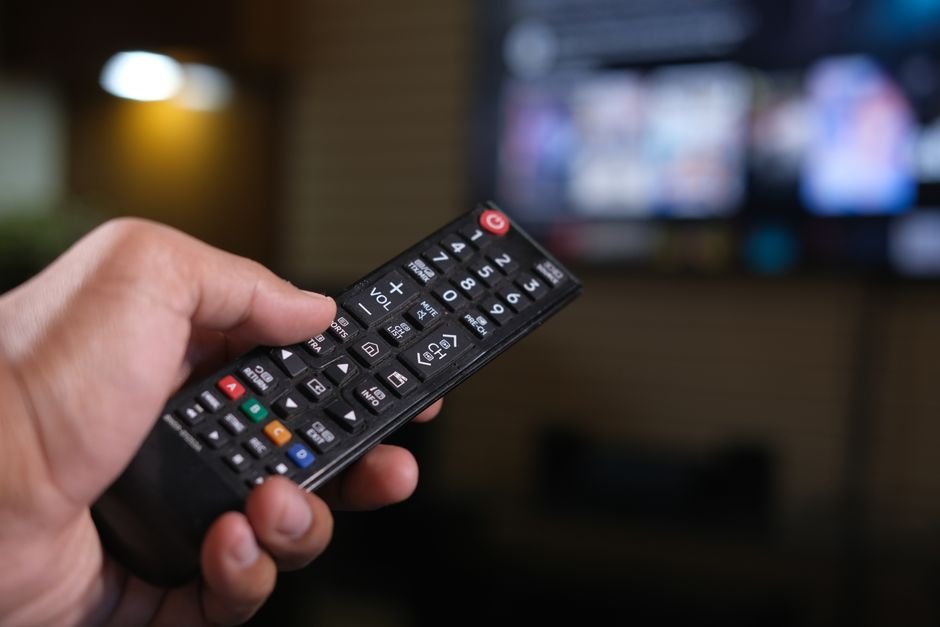
Staring at a wall of thousands of unsorted channels feels exhausting. You just want to catch the evening news on the BBC or see what film is starting on Channel 4. Without a working schedule, finding anything takes ages. That is where an IPTV EPG UK configuration comes in handy. It turns a chaotic text list into a familiar television grid. You see what is playing right now and what airs later tonight.
Many viewers assume channel schedules load magically on their own. Sometimes they do. Often, though, you need to point your player app to the right data source. XMLTV links and M3U files do not always talk to each other out of the box. Setting this up properly saves you endless frustration.
We will walk through how these schedules work, why timings drift off, and how you can fix missing data yourself. You do not need to be a computer whiz to sort this out. Let us break down the exact steps to get your TV guide running smoothly.
How Schedule Data Flows Into Your App
Your streaming player needs external information to display show titles and times. Traditional television relies on signals sent directly through aerials or satellite dishes. Internet television works differently. It pulls text files from remote servers over your broadband connection.
These schedule files use a standard format called XMLTV. When you input a provider link, your app reads the XML data. It matches channel IDs from your playlist with the corresponding schedule entries. If the ID numbers line up, you see a neat programme grid.
Sometimes codes do not match. Provider A might call BBC One HD something completely different from what the guide server expects. When this happens, the schedule stays blank. Understanding this connection helps you diagnose why your screen shows “No Information” instead of a show description.
Sourcing and Linking Your XMLTV Data
Most reliable services supply an XML link alongside your main streaming playlist. You need to copy this web address into your player settings. If you want to check the basics of how these playlist structures operate, take a look at our guide on UK playlist formats.
Open your app menu and find the EPG settings tab. Paste the XML address into the designated URL field. Hit save and force a manual refresh. Watch the progress bar crawl across the screen as hundreds of megabytes of schedule text download.
If your provider does not bundle a schedule link, external free XML suppliers exist online. Be careful with free sources. They often drop popular UK channels or miss weekend listings. Stick to trusted data feeds whenever possible to keep your grid populated.
Fixing GMT and BST Timezone Mismatches
Nothing ruins a movie night quite like a schedule that thinks it is two hours ahead. You might check what is playing at eight o’clock, only to find the guide showing late-night shows. Timezone errors happen constantly with international servers.
Most good player apps include an offset slider. You can manually adjust the hours forward or backward to match British Time. Remember that the UK switches between Greenwich Mean Time and British Summer Time. You may need to tweak this offset twice a year when the clocks change.
Some advanced players detect your device location automatically. Still, manual correction remains the safest bet if your provider’s server runs on central European or American time zones. Check the current time against a live broadcast to confirm your offset is correct.
Resolving Missing Channel Logos and Picons
A good television guide relies heavily on visual cues. Seeing familiar station logos helps your eyes scan the grid quickly. When logos vanish, your screen looks cluttered and confusing.
Picons usually load from a separate folder URL linked within your app settings. If your provider changes their server address, those image links break instantly. You will see blank grey boxes where broadcaster badges should sit.
Fixing this usually requires updating the picon repository URL in your player preferences. Some apps let you upload a custom ZIP folder filled with transparent PNG logos directly from a USB stick or local network storage. Keep your icon files small to prevent your device from lagging during heavy scrolling.
Automating Background Updates for Fresh Schedules
Schedule data expires quickly. If your app only updates once a week, tomorrow’s listings will appear empty. You need to configure background refresh intervals properly.
Most applications let you choose how often they check for fresh data. Setting your app to update every twenty-four hours usually strikes the right balance. Avoid setting updates to happen every hour. Constant downloading wastes data and can slow down your home broadband connection.
If you want a deeper dive into how broader television services operate online, read our breakdown on how internet television works in the UK. Keeping your background tasks optimized ensures your guide is always waiting for you.
Frequently Asked Questions
Why does my guide show “No Information” for most UK channels?
This usually means your XMLTV URL is broken, expired, or mistyped. Go back into your app settings, clear the existing URL, and paste the correct link from your provider again.
How often should my schedule refresh?
Once every twenty-four hours works best for most households. It keeps current listings fresh without overloading your device memory.
Can I add custom channel names to my guide?
Many third-party apps let you edit channel names and numbers manually. Check your player’s playlist editor menu for customization options.
For more information, IPTV UK.
Related reading
Update: How to Back Up and Restore Your IPTV Playlist on UK Devices
Explore Our Flexible IPTV Plans and Start Streaming Today
Main events, undercards and title fights streamed in 4K. No pay-per-view charges, no contract, instant activation on any device.
Leave a Reply