





- Test Your Real Internet Speeds First
- Switch From Wi-Fi to a Wired Ethernet Cable
- Clear App Cache and Manage Background Tasks
- Change Your DNS Settings for Faster Routing
- Manage Simultaneous Household Devices
- Update Your Streaming Hardware and Apps
- Restart Your Router and Modem Regularly
- Adjust Buffer Settings Inside Your Player App
Staring at a frozen screen while your favourite show refuses to load ruins any evening. When you want to reduce buffering IPTV playback issues require a methodical approach to your home network. Television streams demand steady data delivery every single second. Even a tiny dip in bandwidth causes annoying pauses or sudden drops in video quality.
Fixing these annoying interruptions doesn’t require a degree in network engineering. Most playback stutters trace back to a few common bottlenecks hiding inside your home setup. Let’s look at the practical adjustments you can make right now to lock in a stable connection.
Test Your Real Internet Speeds First
You might pay for a fast broadband package, but what speeds do you actually get at your television? Internet service providers love advertising maximum possible rates. Real-world performance often tells a completely different story.
Run a speed test from a device sitting right next to your streaming box. Live television streams need a solid, uninterrupted connection. Standard definition needs very little bandwidth. High definition demands more room to breathe. 4K streams require a robust connection that stays consistently high without sudden drops.
Run your tests at different times of day. Evening hours bring heavy neighborhood traffic. Your speeds might tank right when everyone else streams movies or plays online games. If your evening speeds drop below your provider’s promises, you need to talk to them or adjust how your household shares the bandwidth.
Switch From Wi-Fi to a Wired Ethernet Cable
Wireless networks offer incredible convenience. They also introduce massive interference. Walls, floors, microwaves, and thick concrete block Wi-Fi signals constantly. That invisible interference creates packet loss.
Packet loss forces your streaming device to ask the server for missing data over and over again. Those micro-delays add up fast. The result is stuttering video and frustrating loading circles.
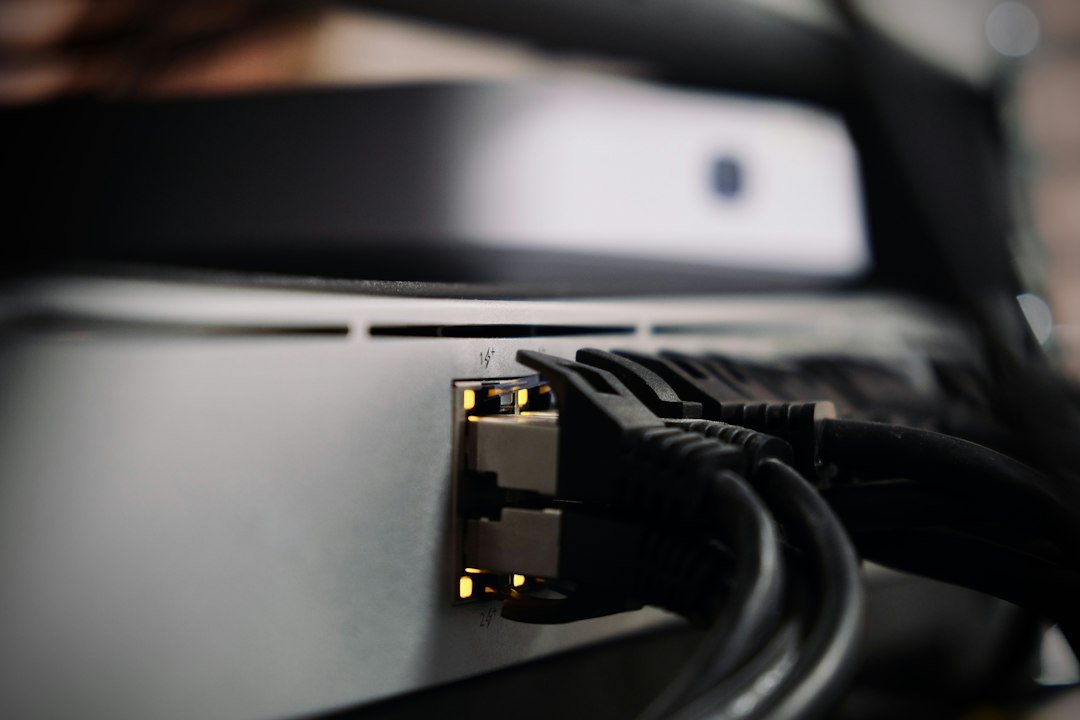
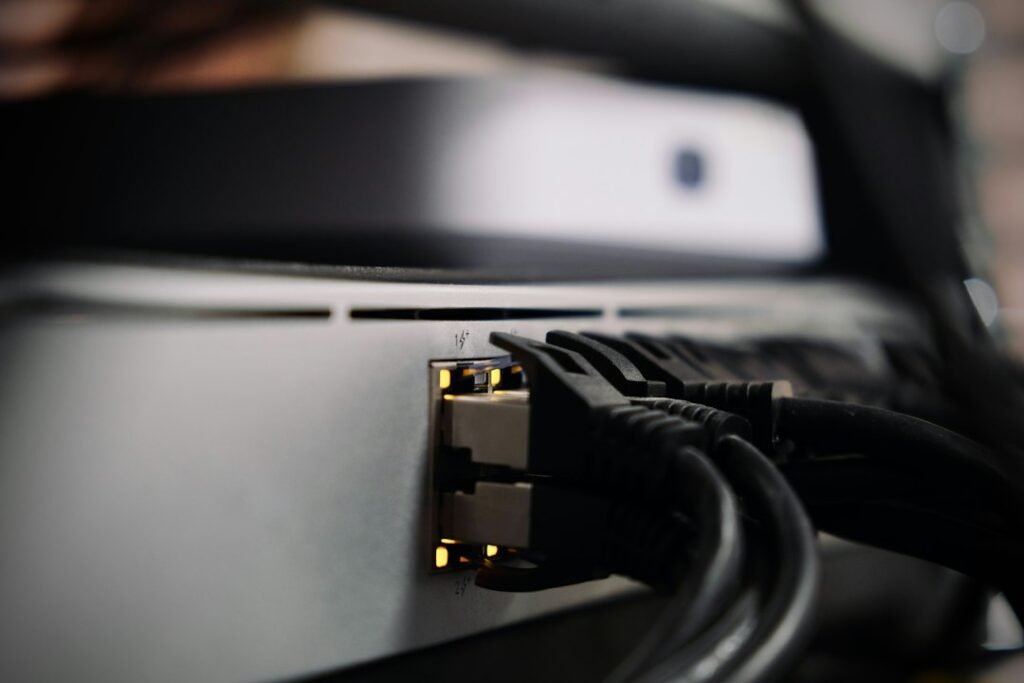
Plugging an ethernet cable directly into your streaming device changes everything. Physical copper wires deliver data packets instantly and reliably. You eliminate wireless interference in one simple step. If your router sits too far away from your television, look into powerline adapters. They send internet signals through your home electrical wiring to create a wired port anywhere you want.
Clear App Cache and Manage Background Tasks
Smart TVs and streaming sticks collect massive amounts of temporary data. Apps store cached files to speed up loading times. Over time, that cache gets bloated and corrupted.
Stuffed storage space slows down your entire device processor. When your hardware struggles to decode video streams, playback stutters. Go into your device settings and clear the cache for your preferred streaming application regularly.
Also check what else runs in the background. Many apps keep checking for updates or syncing data while you watch television. Close unnecessary applications before starting your viewing session. Free up your device’s RAM so it focuses entirely on smooth video playback.
Change Your DNS Settings for Faster Routing
Domain Name System servers act like phone books for the internet. They translate website addresses into IP numbers your hardware understands. Default DNS servers provided by internet companies often move sluggishly.
Slow DNS lookups delay the initial connection handshake when you pick a channel. Swapping to a public DNS provider can speed up your connection routing significantly. Popular options include services run by Cloudflare or Google.
Changing these settings takes just a couple of minutes inside your router configuration page or your streaming device network settings. Better routing means your device finds and connects to media streams much faster.
Manage Simultaneous Household Devices
Modern homes hold dozens of connected gadgets. Phones download updates automatically. Laptops stream music in the background. Family members play competitive online games or watch videos in other rooms.
All those active gadgets steal bandwidth from your main television feed. If someone starts a massive file download while you watch a live broadcast, buffering starts immediately. You need to manage your household network load during peak viewing times.
Some modern routers feature Quality of Service settings. These tools let you prioritize traffic heading to your specific streaming box over other household internet usage. If you share your subscription across multiple rooms, read up on how to manage your IPTV connection limits to ensure your network does not max out unexpectedly.
Update Your Streaming Hardware and Apps
Old streaming hardware struggles with modern video codecs. Devices released several years ago lack the processing power required for high-framerate live broadcasts. Manufacturers eventually stop pushing security and performance updates to aging hardware too.
If you use an outdated stick or box, upgrading makes a massive difference. Modern streaming devices feature faster processors and better wireless chips designed for heavy video consumption.
Keep your software updated as well. App developers release patches constantly to fix memory leaks and improve stream handling. Running an ancient version of a streaming app practically guarantees playback trouble.
Restart Your Router and Modem Regularly
Routers are miniature computers. They run continuously for months at a time, collecting memory bloat and background errors. That strain eventually degrades network performance.
Unplug your router and modem completely. Wait about sixty seconds before plugging them back in. This simple power cycle clears the device memory and forces your hardware to renegotiate fresh, clean channels with your internet provider.
Try doing this maintenance step once a month. It takes less than two minutes and often clears up weird connection hiccups instantly.
Adjust Buffer Settings Inside Your Player App
Many advanced streaming applications let you customize how much data they store ahead of playback. This is called the cache size or buffer size.
If your buffer size sits too low, your player tries to show video frames the exact second they arrive. Any tiny network wobble causes an instant pause. Increasing the buffer size forces your app to download a few seconds of video ahead of time.
That slight head start absorbs brief network hiccups smoothly without stopping your picture. Look through your player app settings menu for advanced playback or cache configurations to tweak these values safely.
Fixing playback stutters takes a bit of patience. Start with the easiest hardware checks like cables and cache cleaning, then work your way through network routing and device updates until your streams run smoothly every single night.
For more information, IPTV UK.
Related reading
- How UK Catch Up Apps and Live Streaming Changed British Television
- 6 Essential Checks Before Choosing an IPTV UK Subscription
Update: IPTV on Mobile Devices: What Users Should Know
Update: Common IPTV Streaming Problems and Their Solutions
Update: How Internet Speed Affects IPTV Performance
Update: 7 Important Legal and Consumer Considerations for IPTV in the UK
Pingback IPTV UK Subscription: 6 Essential Checks Before You Buy
Pingback IPTV Internet Speed UK: How to Test Your Connection
Pingback IPTV on Mobile Devices: UK Streaming Guide
Pingback IPTV Legal Considerations: What UK Buyers Need to Know
Pingback Common IPTV Streaming Problems & Fixes for UK Viewers
Pingback IPTV UK Devices: Complete Hardware Setup Guide
Pingback Router Settings for IPTV: UK Speed & Stability Guide
Pingback Ethernet vs Powerline: Best UK IPTV Network Setup