

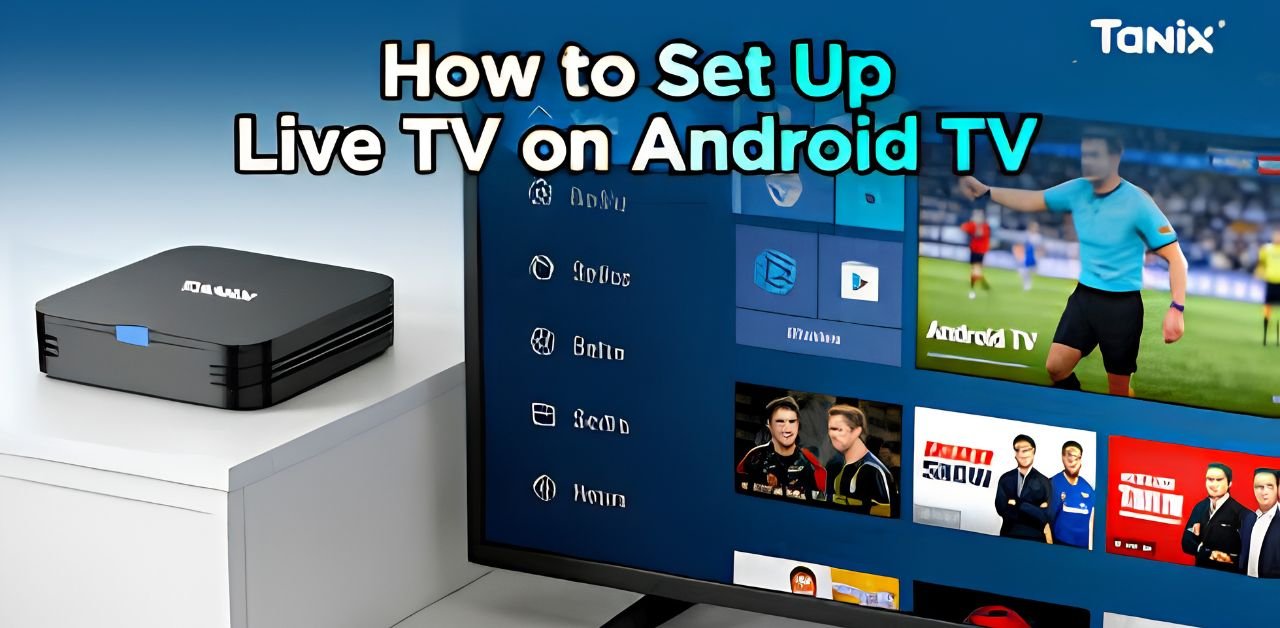




Setting up IPTV on Android devices in 2025 is easier than ever. Whether you are using an Android TV, smartphone, or Android box, you can start streaming live IPTV UK channels, movies, and sports in just a few minutes.
This simple guide explains everything step by step for beginners.
What You Need Before Starting
Before setting up IPTV, make sure you have:
- A stable internet connection
- An IPTV subscription
- IPTV login details or M3U URL
- An Android TV, phone, or Android box
- An IPTV player app
A fast internet connection helps reduce buffering and improve streaming quality.
Best IPTV Apps for Android
Here are some popular IPTV apps in 2025:
App Name: Best For
IPTV Smarters Pro Easy setup
TiviMate Android TV
XCIPTV Fast streaming
Perfect Player Advanced users
You can download these apps from the Google Play Store or the official app websites.
How to Setup IPTV on Android TV
Follow these easy steps:
Step 1: Open Google Play Store
Turn on your Android TV and open the Play Store.
Step 2: Install IPTV App
Search for:
- IPTV Smarters Pro
- TiviMate
- XCIPTV
Install your preferred app.
Step 3: Open the App
After installation, launch the IPTV app.
Step 4: Enter IPTV Details
Add your:
- Username
- Password
- Server URL
Or paste your M3U playlist link.
Step 5: Start Streaming
Click “Login” or “Add User.”
Your channels and movies will load automatically.
How to Setup IPTV on an Android Phone
Setting up IPTV on Android phones is very simple.
Step 1: Download the IPTV App
Open the Google Play Store and install:
- IPTV Smarters Pro
- XCIPTV
- Perfect Player
Step 2: Launch the App
Open the app after installation.
Step 3: Add IPTV Subscription
Enter your IPTV login information or M3U URL provided by your IPTV service.
Step 4: Save and Connect
Press “Login” or “Connect.”
You can now watch live TV, sports, and movies directly on your phone.
How to Setup IPTV on an Android Box
Android boxes work almost the same as Android TVs.
Step 1: Connect the Android Box to the TV
Use an HDMI cable to connect your Android box.
Step 2: Connect to the Internet
Use:
- Wi-Fi
- Ethernet cable
Ethernet is better for stable streaming.
Step 3: Install IPTV Player
Download an IPTV app from the Play Store.
Step 4: Enter IPTV Credentials
Add:
- Xtream Codes API
- Username
- Password
- M3U URL
Step 5: Enjoy IPTV
Your channels should appear within seconds.
Common IPTV Problems and Fixes
ProblemSolution
Buffering Restart router
App not loading. Update the app
No channels. Recheck login details
Freezing Use faster internet
Audio issues: Restart the device
A minimum internet speed of 20 Mbps is recommended for HD streaming.
FAQs
1. Which IPTV app is best for Android TV?
TiviMate and IPTV Smarters Pro are among the best apps in 2025.
2. Can I use IPTV on my Android phone?
Yes, IPTV works perfectly on Android smartphones and tablets.
3. Do I need fast internet for IPTV?
Yes, stable internet improves streaming quality and reduces buffering.
4. Is IPTV setup difficult?
No, setup usually takes only 5–10 minutes.
5. Can I use one IPTV account on multiple devices?
Some IPTV providers allow multi-device streaming depending on the plan.
Conclusion
Learning how to setup IPTV on Android TV, phone, and Android box in 2025 is quick and beginner-friendly. With the right IPTV app and subscription, you can enjoy thousands of live channels , movies, and sports in just a few easy steps. Choose a reliable IPTV app, enter your subscription details, and start streaming instantly.
Leave a Reply