

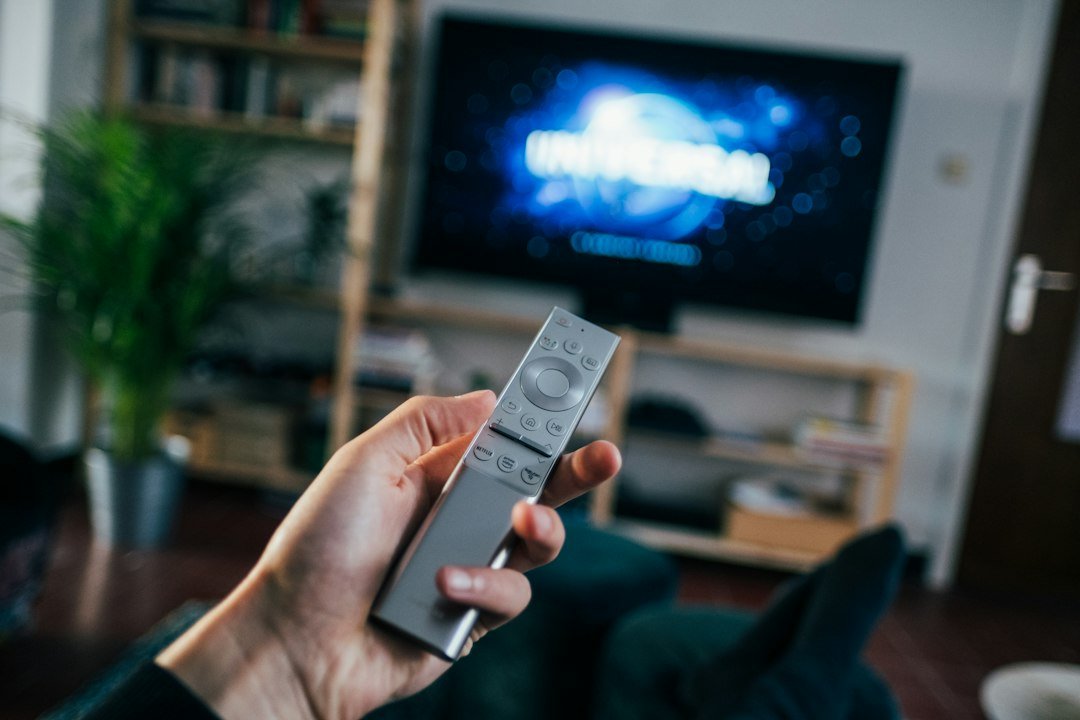


Getting Started with UK IPTV Devices
Moving your television viewing to an internet-based setup changes how you watch your favourite programmes. Whether you use a dedicated streaming stick or your living room television, getting your UK IPTV devices configured properly matters. You don’t need an engineering degree to sort this out. You just need a bit of patience and the right steps.
Most households run multiple screens nowadays. Your phone sits next to you on the sofa. Your tablet handles the kitchen counter. Your main television anchors the lounge. Setting up streaming correctly across every single piece of hardware takes a methodical approach. Let us walk through the exact process required to get everything working without endless trial and error.
Assessing Your Hardware and Compatibility
Hardware choice dictates your overall experience. Old television sets struggle with modern media players. You need to look at what’s under the hood of your tech.
Fire TV sticks dominate UK living rooms. They are cheap, small, and handle high-definition streams well. Android TV boxes offer more customisation. Apple TV units provide a polished interface if you are deep into the iOS ecosystem. Smart TVs from brands like Samsung and LG run their own operating systems. These built-in platforms work fine for basic viewing. They often lack the advanced app support found on external dongles.
Check your storage space before downloading anything. Many budget boxes ship with only 8GB of internal memory. Apps, cache files, and electronic programme guides fill that space quickly. Clear out old applications you never touch. Give your hardware room to breathe.
Checking Your Network and Broadband Speeds
Your hardware only performs as well as your internet connection. A top-tier streaming box fails miserably on a sluggish Wi-Fi signal. Before you touch any app settings, look closely at your broadband setup.
Fibre connections handle high-definition streams easily. Standard copper ADSL lines often buckle under pressure during peak evening hours. If your streams buffer constantly, read up on broadband speed requirements to see what your household actually needs to stay online.
Wi-Fi interference ruins television viewing. Microwaves, thick brick walls, and baby monitors disrupt wireless signals. Plug your streaming box directly into your router with an Ethernet cable whenever possible. Hardwired connections eliminate dropped frames and stuttering pictures instantly.
Choosing and Installing the Right App
You need a media player to read your service details. Picking the correct software changes everything. Not all apps function the same way on every piece of hardware.
Amazon Fire devices work best with sideloaded apps or official store downloads like IPTV Smarters. Android TV users often prefer TiviMate for its robust electronic programme guide and multi-screen layout. Smart TV app stores carry generic players like Smart IPTV or Net IPTV.
Open your device’s app store. Search for your chosen player. Hit download and wait for the installation to finish. Avoid clicking random third-party APK links from unverified sources on the web. Stick to official app repositories to keep your hardware secure.
Configuring Your Playlist and EPG Settings
Once your app opens, you need to link your service provider details. Most services hand over an M3U URL or Xtream Codes API credentials. Grab your login info before you sit down at the screen.
Type your login details carefully. One stray character breaks the entire connection. If you are using an M3U link, double-check every slash and colon. API logins require your username, password, and server URL entered into three separate boxes.
Load your electronic programme guide next. A proper EPG makes your channel list usable. Without it, you just see a raw directory of names with no idea what’s currently broadcasting. Set your EPG update interval to refresh once a day. Do not set it to update every time you open the app. Constant background updates drain your device resources and slow down channel switching.
Fine-Tuning Performance on UK IPTV Devices
Default settings rarely offer the best performance. Take ten minutes to tweak your player preferences. Small adjustments yield massive improvements in video smoothness.
Hardware decoding is your best friend. Turn it on in your app settings. This forces your device’s physical graphics chip to handle the video stream instead of the software processor. The picture becomes sharper. Power consumption drops.
Audio settings need attention too. Match your audio output to your soundbar or television capabilities. Force stereo if you only use built-in TV speakers. Enable pass-through if you run an advanced home theatre receiver.
Clear your app cache weekly. Streaming apps accumulate gigabytes of temporary data over time. That clutter causes unexpected freezing and crashes. Jump into your device settings menu, locate your installed players, and clear their cached data regularly.
Managing UK IPTV devices across a whole home requires discipline. Keep your apps updated. Restart your streaming boxes once a week to clear their RAM. Simple maintenance routines keep your evening viewing completely hassle-free.
For more information, IPTV UK.
Related reading
- A Complete Guide to Using UK IPTV Devices Across Your Home
- How to Back Up and Restore Your IPTV Playlist on UK Devices
Update: Five UK Devices Tested for IPTV Streaming Quality
Update: Choosing the Best IPTV UK Devices for Your Home
Update: 6 Things to Know About Managing Your IPTV EPG UK Setup
Pingback IPTV UK Devices: Complete Hardware Setup Guide