

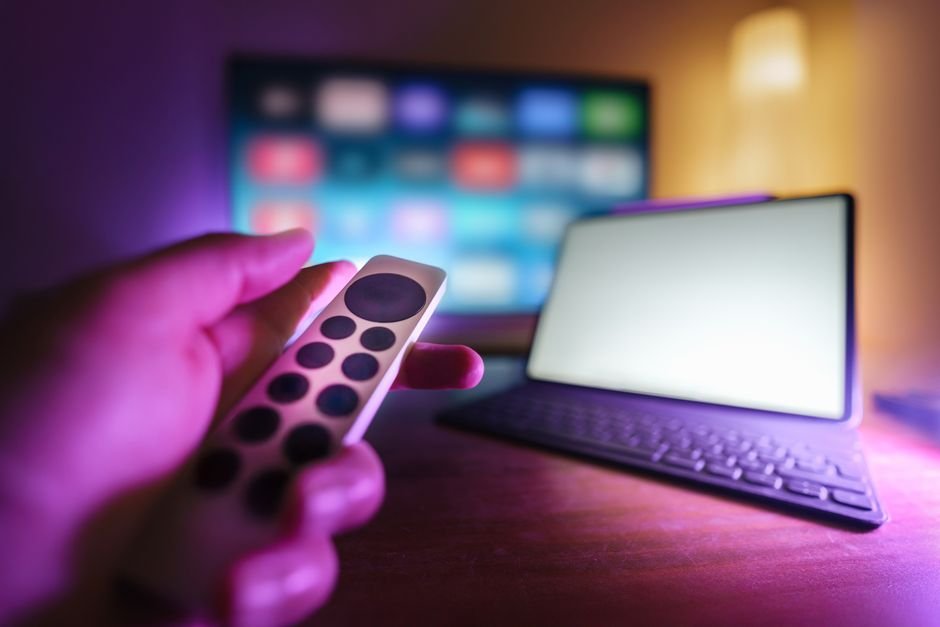




Getting your home entertainment setup right means looking closely at the physical hardware you use every day. When you want to stream television over broadband, your choice of uk iptv devices dictates everything from channel loading times to video resolution. You might already own a compatible screen or a small plug-in box that handles apps with ease. Still, older hardware often struggles with modern media formats, causing annoying freezes during live broadcasts. Let’s break down how different pieces of hardware handle internet television across the UK.
Smart TVs and Their Limits with uk iptv devices
Most modern living rooms feature a connected television running software like Tizen, webOS, or Google TV. Manufacturers build these screens to handle streaming apps directly from an app store. You download a media player, type in your playlist details, and start watching without extra wires. It sounds simple, but built-in television processors often lack the muscle needed for heavy streams.
Processor speeds inside standard flat screens vary wildly. Budget models usually ship with weak quad-core chips and minimal RAM, sometimes as low as 1.5GB. That hardware handles Netflix fine because Netflix compresses data aggressively and uses dedicated server caching. Live internet television streams behave differently. They require constant packet processing and heavy electronic programme guide rendering. If your television feels sluggish when opening menus, it’s going to struggle with live feeds.
Ethernet ports on most consumer televisions also limit performance. Manufacturers frequently install cheap 100Mbps ethernet adapters instead of gigabit ports. Wi-Fi chips inside TVs can suffer from interference if your router sits in another room. If you prefer using your television’s native operating system, make sure your Wi-Fi signal is strong. Otherwise, external hardware remains a safer bet for reliability.
Streaming Sticks and Compact Android Boxes
Plug-in hardware has completely transformed how people watch media at home. Devices like Amazon Fire TV sticks and dedicated Android boxes connect directly to an HDMI port behind your television. They draw power either from a wall socket or a USB port, though wall power always delivers better stability. These small gadgets focus entirely on media playback.
Android TV boxes usually offer more storage and better port selection than basic streaming sticks. Many include full-size USB slots, expandable micro-SD storage, and proper ethernet ports. If you want a wired connection without buying extra adapters, an Android box solves that problem instantly. Fire sticks rely heavily on wireless signals unless you purchase a separate ethernet adapter accessory.
Memory matters immensely here. Avoid any device featuring only 1GB of RAM. Applications crash frequently when memory fills up, especially if your playlist contains thousands of channels and detailed catch-up archives. Aim for at least 2GB of RAM on budget units, while 4GB models handle heavy skin interfaces and background tasks effortlessly. For more foundational information on how these setups operate, check out this beginner’s guide to internet television.
Smartphones and Tablets as Portable Screens
Watching broadcasts on mobile hardware offers unmatched flexibility around the house. You aren’t tied to the living room sofa. You can catch a live football match in the kitchen while cooking or stream the news from your bedroom. Both iOS and Android ecosystems support robust media players capable of handling standard broadcast protocols.
Screen size and battery consumption are the main trade-offs here. High-definition video streams drain batteries quickly. You’ll find your percentage dropping faster than normal during extended viewing sessions. Processing high-bitrate video also generates heat, which can dim your phone screen automatically to prevent overheating.
Wi-Fi stability plays a massive role on mobile hardware. Walking around your house causes your device to switch between mesh nodes or router bands. That split-second disconnect can freeze your stream or drop your connection entirely. Keep your device stationary if you want uninterrupted playback.
Using Laptops and Desktop Computers
Computers offer the most powerful processing environment for media playback. A standard desktop or laptop features a robust multi-core processor, ample RAM, and dedicated graphics hardware. Running a media player application on a PC rarely causes performance bottlenecks.
Connecting a computer to your living room television requires an HDMI cable or a wireless display transmitter. This setup turns your computer into a media center. You can use a wireless mouse or keyboard to navigate menus from your sofa. Many enthusiasts prefer this method because desktop applications offer advanced video decoding settings and easier file management.
Browsers also act as viewing portals through web-based players. While convenient, running streams inside a browser consumes more system resources than dedicated application software. Keep your browser updated and close background tabs to prevent memory leaks during long viewing sessions.
Broadband Requirements and Hardware Compatibility
No matter which hardware you choose, your broadband connection dictates your success. Standard definition feeds require modest speeds, but high-definition and 4K broadcasts demand a lot more data. Ofcom notes that average UK broadband speeds continue to rise, but local infrastructure still dictates what enters your home.
Aim for a stable connection speed well above your stream’s bitrate. A single 1080p stream usually needs around 10Mbps to 15Mbps of consistent bandwidth. 4K streams push that requirement past 25Mbps. If multiple people share your home network, your total bandwidth needs multiply quickly. Streaming video while someone else downloads large files will cause buffering loops.
Wired connections always beat wireless connections for streaming stability. If you can run an ethernet cable directly to your streaming box, do it. Wi-Fi suffers from interference caused by walls, microwaves, and neighboring routers. Eliminating wireless dropouts solves the vast majority of freezing issues.
Making Your Final Choice
Choosing the right hardware comes down to your personal habits and existing home setup. If you want a clean aesthetic with a single remote, a modern Smart TV or a Fire stick fits neatly behind the screen. If you prefer maximum speed, expandability, and a wired ethernet port, an Android TV box or desktop computer delivers superior results. Match your hardware choice to your broadband speeds, and you’ll enjoy a smooth viewing experience every time.
For more information, IPTV UK.
Related reading
- How to Check Your Router Settings for Better UK IPTV Streaming
- How to Clear Storage and App Data for Smooth IPTV UK Performance
Update: IPTV Device Compatibility Myths: What Actually Works on UK Screens?
Pingback IPTV Subscription Mistakes to Avoid in the UK
Pingback Ethernet vs Powerline: Best UK IPTV Network Setup