

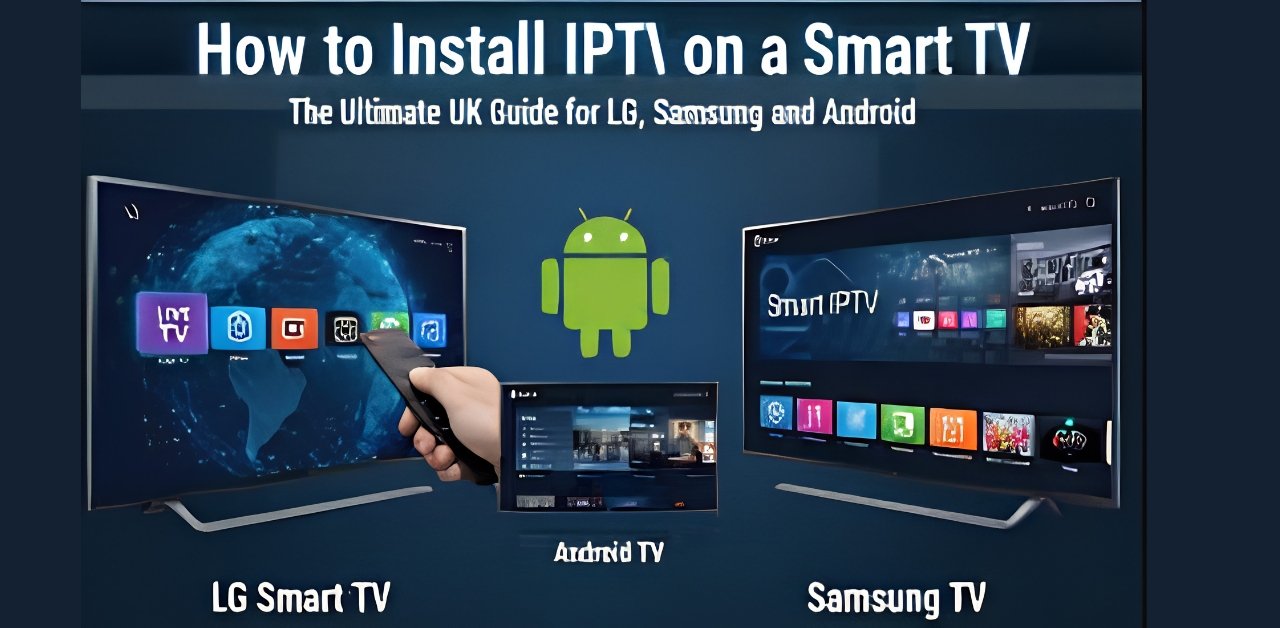




Installing IPTV on Samsung Smart TVs is simple and only takes a few minutes. With the right IPTV UK app and subscription, you can stream live TV, sports, movies, and 4K channels directly on your television .
Step 1: Open the Samsung App Store
Turn on your Samsung Smart TV and go to:
- Smart Hub
- Open the App Store
Step 2: Install an IPTV App
Search for one of these IPTV players:
- IPTV Smarters Pro
- Smart IPTV
- Duplex IPTV
Download and install the app.
Step 3: Add IPTV Subscription Details
Open the IPTV app and enter:
- M3U Playlist URL
- Xtream Codes login
- Username and password
Your IPTV provider will give you these details after purchase.
Step 4: Start Watching IPTV
Once channels load, you can enjoy:
- Live TV
- Sports channels
- Movies and series
- 4K entertainment
How to Set Up IPTV on LG Smart TV
Setting up IPTV on LG Smart TVs is also fast and beginner-friendly.
Step 1: Open LG Content Store
On your LG TV:
- Press the Home Button
- Open the LG Content Store
Step 2: Install IPTV Application
Search and install apps like:
- IPTV Smarters
- Smart IPTV
- SS IPTV
Step 3: Enter IPTV Login Information
Launch the app and add:
- M3U URL
- Xtream Codes API
- IPTV username and password
Step 4: Enjoy IPTV Streaming
After setup, your IPTV channels will appear automatically. You can now stream live TV, sports, and movies directly from your LG Smart TV.
Tips for Better IPTV Streaming
TipBenefit
Use fast internet to reduce buffering
Restarting the TV regularly improves performance
Update IPTV app: Fixes playback issues
Use an Ethernet cable for a more stable connection
Conclusion
Setting up IPTV on Samsung and LG Smart TVs is easy and does not require technical experience. Simply install an IPTV app, enter your subscription details, and start streaming your favourite channels in HD or 4K quality.
Leave a Reply